Gumroad Listing Migration

Hey everyone! Another big update, so let's get right into it:
Creators! Please read before using this tool yourself:
This article and video will act as a guide to help you merge listings that you've imported over from Gumroad using the Gumroad Store Importer, and grant access to users to the Jinx listing version instead of having a duplicate product on your account. You cannot merge Jinxxy products with other Jinxxy products. Before we get into it, understand when using the merging tool, that the process is IRREVERSIBLE, watch the guide in it’s entirety and pay close attention. If you merge the wrong products or link the wrong versions, you will not able to undo.
Check out our in-depth video here: https://www.youtube.com/watch?v=b4ofKyD0oiA
Warning: Please watch the video first before attempting to use the merging tool, it is imperative and will help guide you through the process.
To get started:
To begin, navigate to your creator dashboard, and products. (https://dashboard.jinxxy.com/products?section=imported )
Under the “Imported” tab, click “Link Product” on an imported listing if the status is “not linked”. Select your Jinxxy listing to merge into, and click “Link Product” in the popup
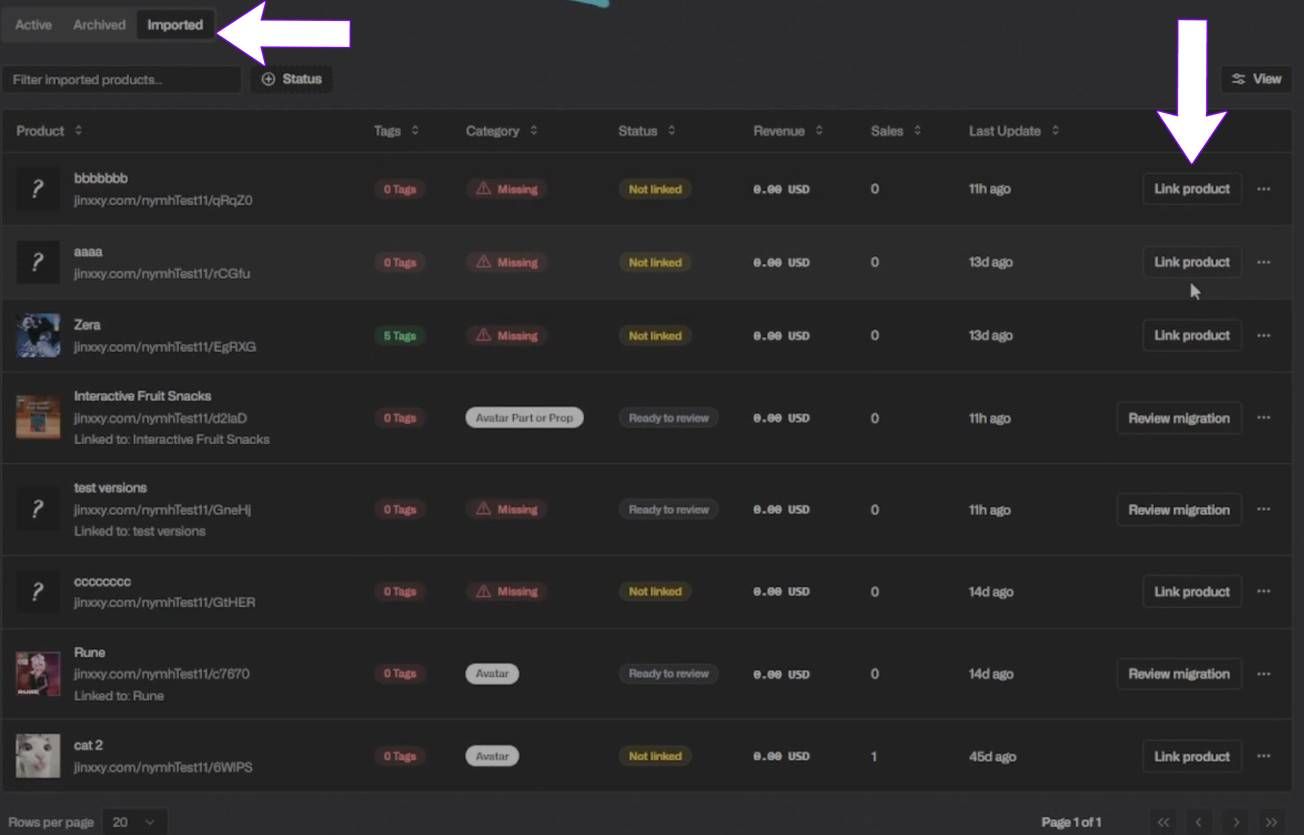
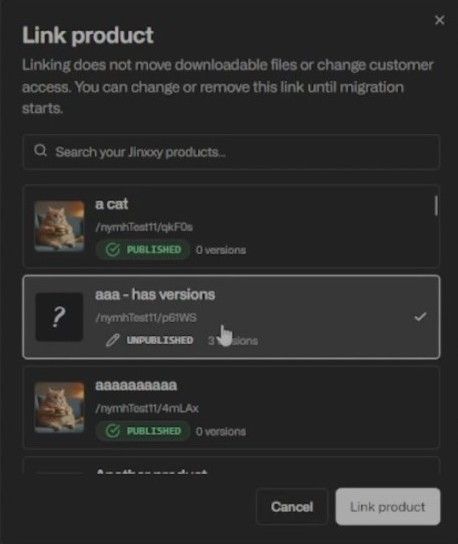
After you have linked a Gumroad listing to your Jinxxy product, then you will have the opportunity to merge your Gumroad listing to a Jinxxy product. Once the listing has been linked, click “review migration”. Here you’ll see the imported listing, and the linked Jinxxy product and information about both. You can click the “Open Product setup” button to navigate to the base listings, to make sure that it’s the right one on each end.
Once you’re ready, click “set up migration” to begin.
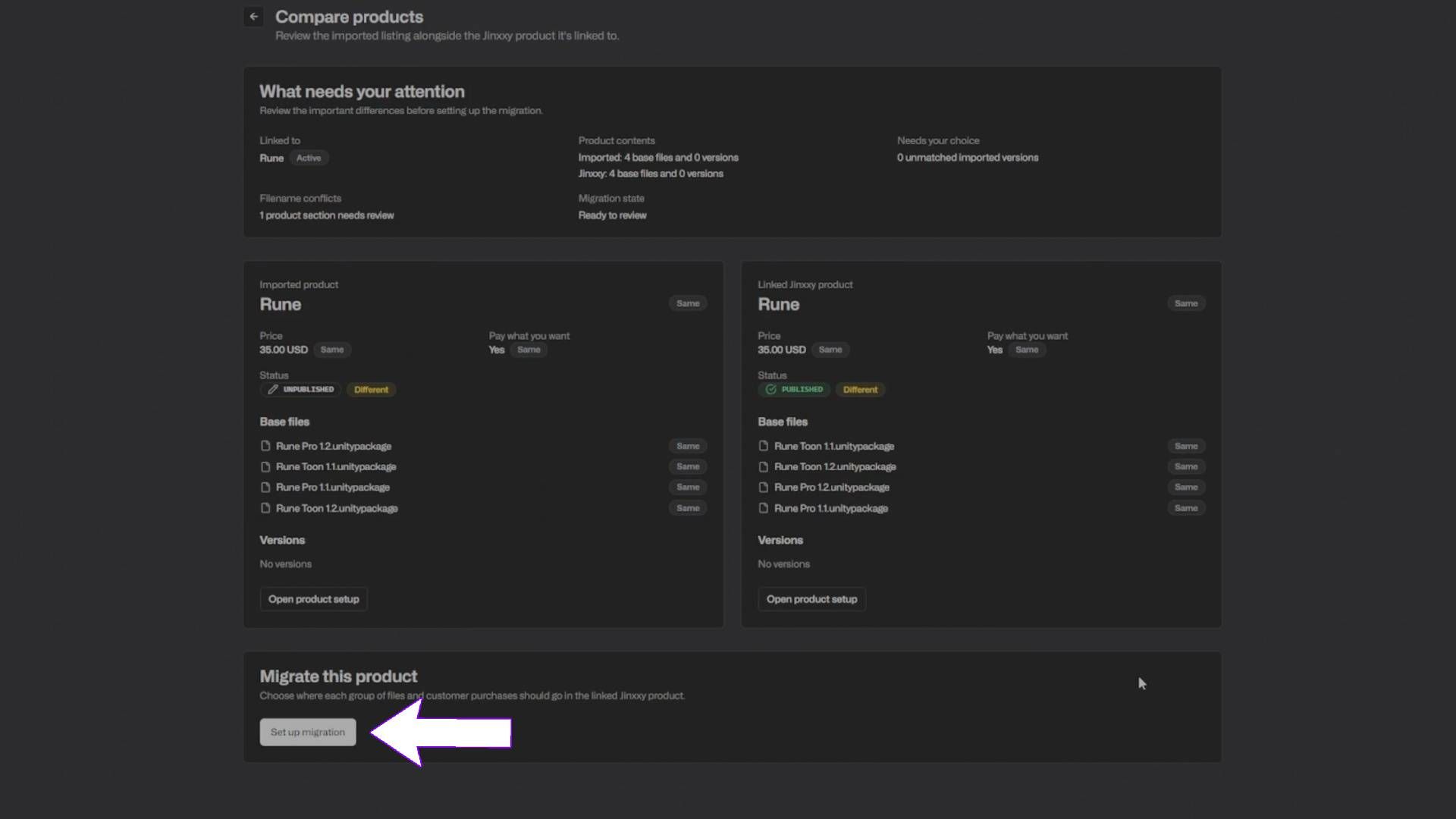
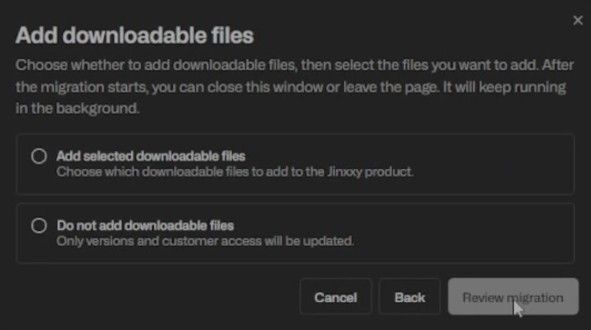
In this example, each product only has a base version, and no additional versions to select from. You can then continue to select which downloadable files should exist in the base product for Jinxxy. Under this screen, you’ll have to choose whether you want to add files from the Gumroad listing to the Jinxxy product, or whether you don’t want to add anything.
Here we’ll click “Add selected downloadable files” to show that since the names are all the exact same, nothing will be moved over. If you want to move over any files, you’ll have to rename them in the imported Gumroad listing.
Once you’re ready, click “review migration”
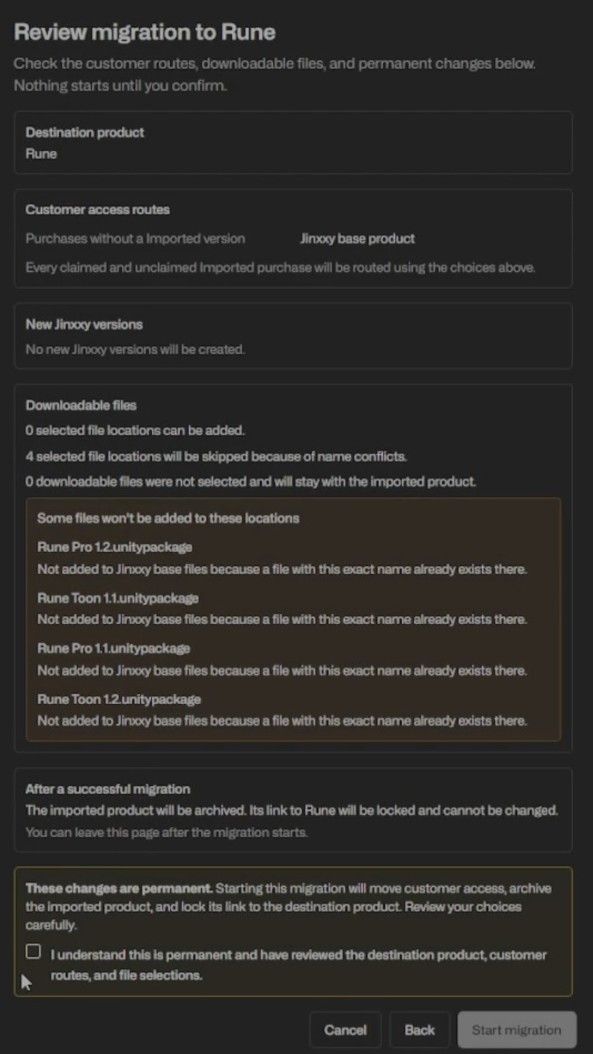
After this, review all the information - we recommend taking your time here, as this is an irreversible process.
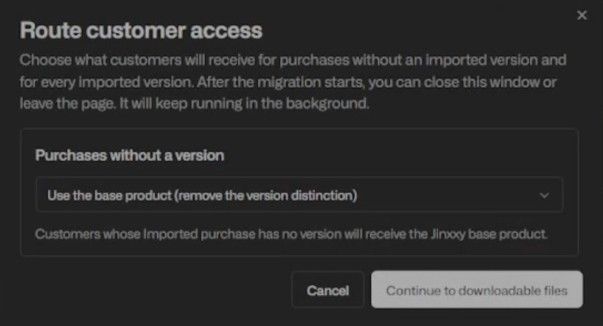
After reviewing all of the information - click the checkbox and start migration.
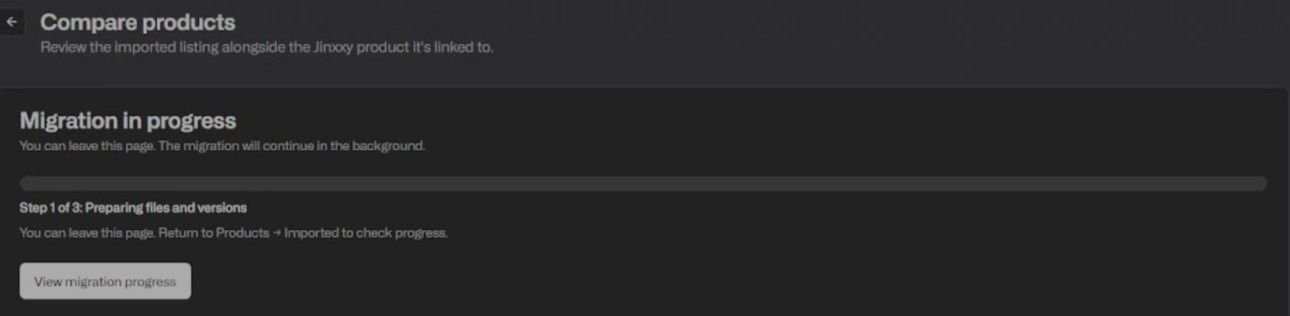
Once it’s started, you’ll see a “In Progress” screen - based on the number of files and licenses. This might take a bit, but you can navigate off this screen and check back on this later.
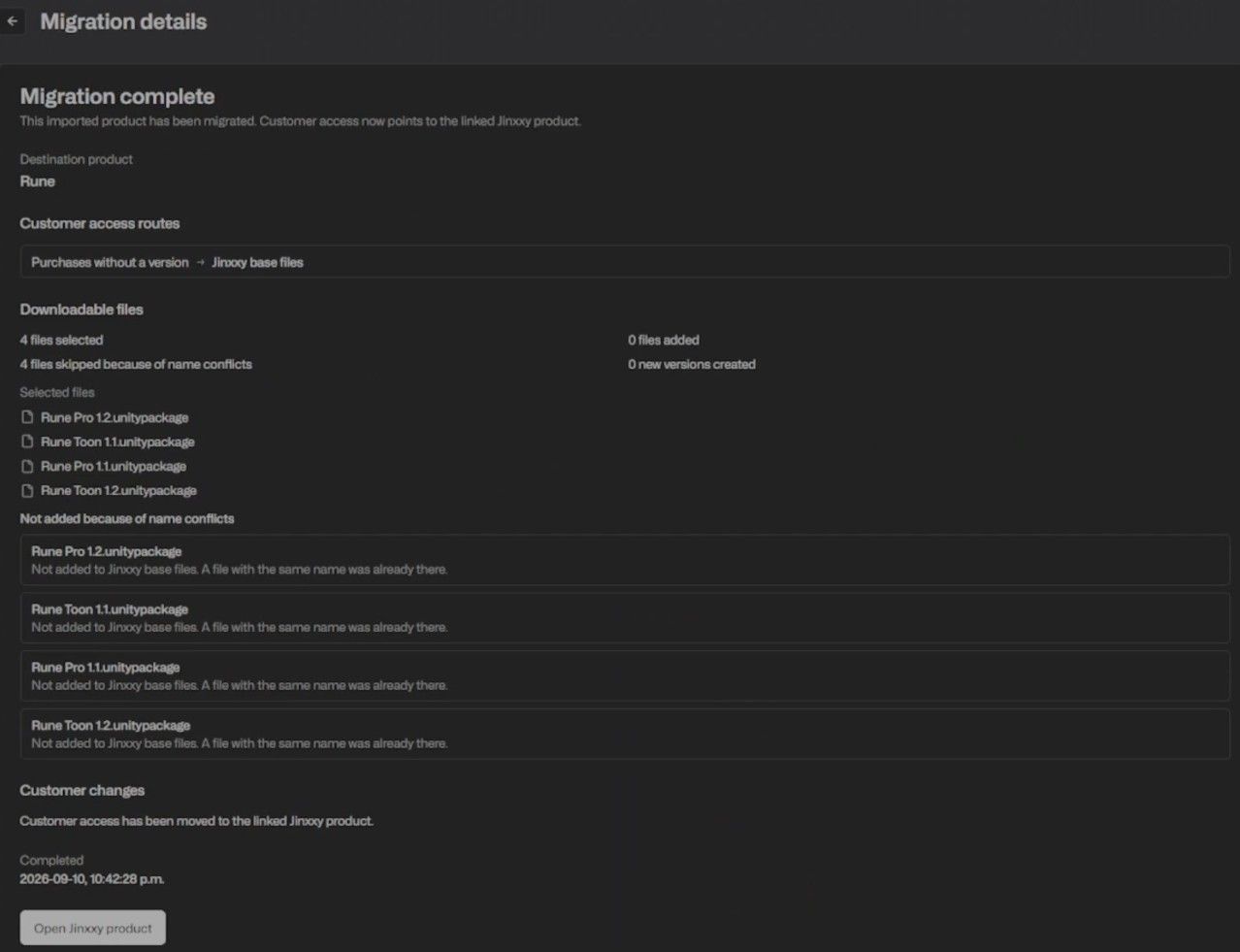
When the migration is complete, you’ll see this page detailing the merged product, and can open up the Jinxxy product page of what you condensed your Gumroad listing into.
For a more detailed look on Merging Listings with different Versions, we have provided an example in the video(2:18) for you to follow along with.
Users will be given new license keys to the Jinxxy product based on the version that you’ve given them, and the imported Gumroad listing will be archived and accessible in case you need it later.
Following these steps, you have now successfully merged your imported Gumroad listing to your Jinxxy product.
That's all for now - hope you all have a fantastic week!